The complete IBO Player guide
IBO Player is the one application IPTVNext supports, and there is a good reason for that: it installs on very nearly every platform in circulation, the interface stays out of the way, and playback is genuinely smooth. This guide walks the whole process, from installer to first channel.
Why IPTVNext standardises on IBO Player
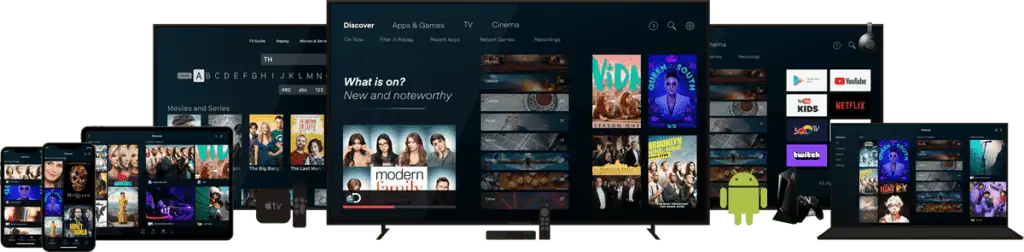
Among the IPTV applications in circulation, IBO Player is one of the very few you can find on almost any platform and operating system. The tidy interface is not the only draw — smooth playback and a sensible set of core features are what make it a popular choice among serious IPTV viewers. It was built by a development group called IBODEV, and the player is only one product in a much broader portfolio.
Supporting a single application is a deliberate engineering decision on our side. It means we tune the servers against one client, ship playback fixes that reach every subscriber at once, and staff support with people who know the app rather than a dozen apps badly. If you have used other players before, the transition takes about five minutes.
What IBO Player does well
- It installs practically anywhere. From Android devices through to Linux desktops, the official site publishes a platform-specific installer for each system.
- It is the strongest option for non-Android smart TVs. This is the real reason it matters. Samsung and LG televisions run closed operating systems that force developers to strip features out, which is why most well-known IPTV players never appear on those sets at all. IBO Player did the work and shipped anyway.
What it does not do
- No recording function. There is no DVR of any kind. Not everyone uses recording, but its absence is worth knowing before you start.
- No multi-screen view. You cannot watch two streams side by side in one window.
- Playlists activate remotely. Rather than typing credentials into the app, you add them on the IBO Player portal and their cloud pushes the details to your device. It works well, though it does mean the app depends on their API being reachable.
- The app itself is paid. IBO Player gives a short evaluation window after installation, then asks for a licence — roughly €5 for a year or €10 for life. That fee goes to IBODEV, not to IPTVNext.
Installing on Android phones, tablets and boxes
This is the easiest platform of the lot, because you have a normal browser and can download and install directly.
- Download the installer from the official IBO Player website.
- Android will warn you that the file came from outside the Play Store. That warning is expected — choose Download anyway.
- Open the downloaded file.
- Tap Install.
- IBO Player is now installed. Open it.
- An introductory screen appears the first time. It explains what happens next — we cover the playlist step below. Tap OK.
- The app is loaded and ready.
Installing on Windows
IBO Player runs on Windows 10 and above, and the installer published is 64-bit only.
- Download the Windows installer from the official site.
- Windows Security will stop the installation because the file did not come from the Microsoft Store. Click More info.
- Choose Run anyway.
- Click Next.
- Tick the box if you want a desktop shortcut, then Next.
- Click Install to finish.
- Click Finish to launch IBO Player.
Installing on Amazon Fire TV Stick
Fire TV needs one extra tool because Amazon does not carry IBO Player in its own store. The Downloader app handles it.
- From the Fire TV home screen, move to the magnifier icon and open the search field.
- Type D — Downloader should appear as the first suggestion. Select it.
- Choose the app to begin installing.
- Confirm with Download.
- Allow media access when prompted.
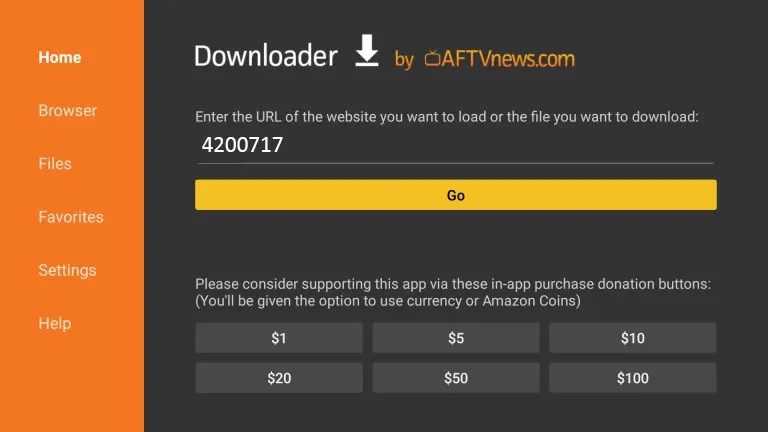
- Once Downloader opens, highlight the search field above the yellow Go button and press OK.
- Enter the official Downloader code for the Android build of IBO Player — 511693 — and press Go.
- The download starts from the official site. Leave it alone until it completes.
- Wait for the transfer to finish.
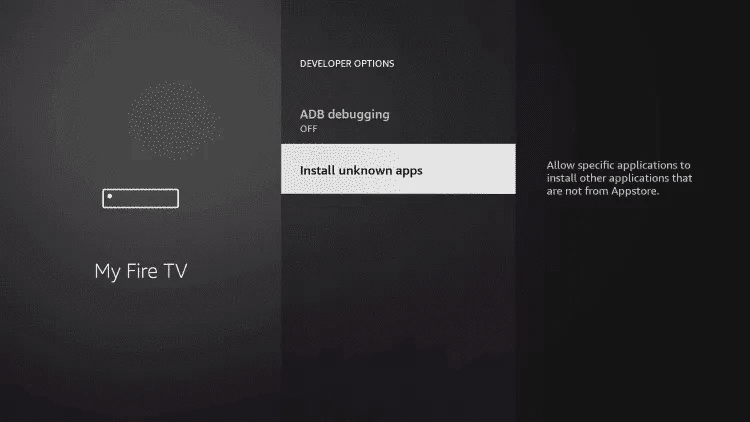
- Amazon will block the install because the file came from outside its store. Choose Settings.
- Open Install unknown apps.
- Select Downloader and switch it from OFF to ON.
- Run the installer — a couple of Next and OK presses.
- Accept the first-launch message with OK.
- The app is ready.
Installing on macOS
For a MacBook or iMac, grab the macOS build.
- Open the official IBO Player site and download the macOS version.
- Open the downloaded file and drag the icon into your Applications folder.
- After about ten seconds the app is installed. Open Launchpad and click the icon.
- macOS will refuse the first launch because the app came from outside the App Store.
- Click the Apple menu, choose System Settings, then Privacy & Security, and scroll to the application security section.
- Choose Open anyway. This choice is permanent — subsequent launches open straight away.
- The application is ready for use.
Installing on LG and Samsung televisions
This is where IBO Player earns its keep. The example below uses an LG set running webOS; Samsung and Toshiba follow essentially the same path.
- Open the LG Content Store.
- Click the magnifier icon in the top-right corner.
- Type IBO Player.
- Pick the correct result. Several similarly named apps exist — you want the one called simply "Ibo Player".
- Click Install.
- Select Launch.
- A welcome message appears on first run. Follow the playlist section below.
Adding your IPTVNext playlist
IBO Player uses remote playlist activation. You add your IPTVNext credentials on their website, and once saved, the data appears in the app on your streaming device.
- Open the IBO Player website and click Manage Playlist in the top menu.
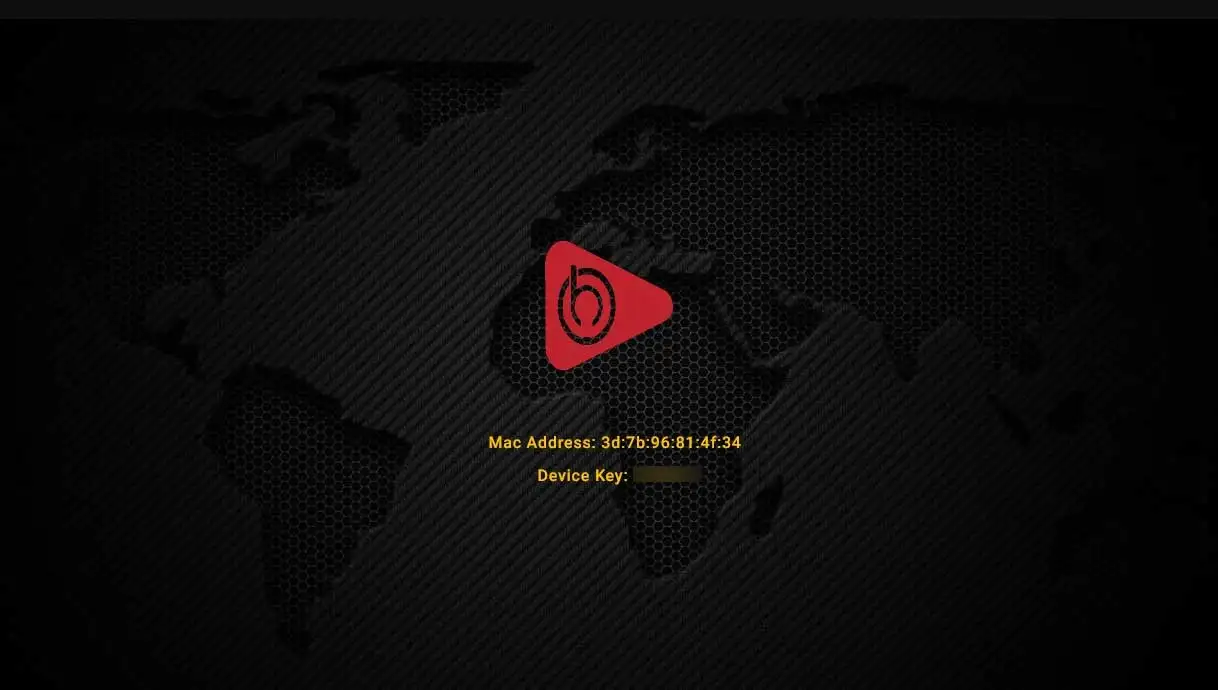
- You will be asked for the MAC address and device key of your installation. The next step explains where to find them.
- Open the app on your streaming device and click the profile icon on the main dashboard.
- Device Info in the top-left section shows both values. Enter them in the form and log in.
- You are now inside playlist management. There are two ways to add your IPTVNext line.
Method one — add an M3U line
If your IPTVNext email gave you a single long streaming URL, this is the quickest route.
- From the portal, click Add Playlist.
- Fill in the fields:
- Playlist name — any label you like, for example "IPTVNext".
- Playlist URL — the M3U link from your activation email.
- XMLTV EPG URL — optional. Leave it empty and IBO Player pulls the programme guide from the playlist automatically. Fill it in only if you are using a third-party guide source.
- Protect this playlist — tick it to set a PIN.
- Click Save.
Method two — add an Xtream Codes playlist
- From the dashboard, click Add XC Playlist.
- The fields match the previous method, with one addition: Host, which is the server address from your email. Add your username and password alongside it and save.
Tidying up the Live TV screen
Worth knowing before you settle in: the default Live TV layout is a little untidy. Channel names overflow underneath the preview window and the programme guide sits awkwardly. One setting fixes it.
- On the IBO Player dashboard, click the screen icon next to the Wi-Fi symbol.
- You are now in Live Screen Style. The default is "Malai TV Style" — the messy one. Switch it to Thai and save.
- Channel names now have room because categories are hidden, and the mini-screen and guide fit properly.
- Press the left arrow on your remote (or the back gesture on a touch device) to bring the categories back when you need them.
Favourites and channel search
Adding a favourite is simple: from the channel list, press and hold on the channel you want, then choose Add. A heart appears beside the name to confirm it. Your favourites list sits at the top of the category column.
Search sits in the bottom-left corner of the Live TV overview and looks across every category at once. It matches on specific terms, so a partial name works but a wrong combination will not — type carefully.
The movies and series section
The on-demand area is deliberately basic and all the better for it — tidy, quick to navigate, with everything essential present. The default listing shows the newest additions from the provider. Press and hold OK on any title to add it to favourites.
Three controls sit in the top-right corner: a palette icon that switches between Modern and Normal themes, a downward arrow for sorting by date added, rating or alphabetically, and a magnifier for search. The full IPTVNext on-demand catalogue runs past 150,000 titles.
Buying the IBO Player licence
The app gives a short evaluation window after installation, then requires a licence. This is a charge from IBODEV for the application itself and is entirely separate from your IPTVNext subscription.
- Open the IBO Player website and click Activate Device in the top menu.
- Sign in with your MAC address and device key — both are available in the app under App Info at the bottom of the dashboard.
- Choose Activate Device in the left column and pick a payment method.
- Accept the terms with the green button.
- Two plans are offered: one year for around €5, or lifetime for around €10. Choose one and click Checkout.
- Complete the details and click Proceed.
- Pay, then close and reopen the application so the activation registers.
Understanding the settings menu
This is where the app's configuration lives. Working from the top left:
- Network — a shortcut to your device's wireless settings.
- Parental control — set a PIN so children cannot open the app. The first time, enter
0000as the current password even if you never set one. Forgotten it? Reset the PIN from the IBO Player portal. - Check for updates — the app can check remotely and update itself.
- Language — sixteen languages supported.
- Application info — version, build code and licence expiry date.
- Clear cache — the first thing to try if the EPG misbehaves or artwork fails to load. It resolves most oddities.
- Manage categories — hide categories you never watch to trim the lineup down to what you actually want. Genuinely useful on a 30,000-channel list.
- Live TV player — switch the playback engine between Android Player, EXO Player and VLC. The EXO and VLC codec libraries are bundled inside the app.
- VOD player — the same choice for films and series.
- Main screen background — twelve graphics to choose from.
- Content strategy — decide whether the app loads all live and on-demand data at launch or only when you open each section. On slower boxes, load-on-demand feels much faster.
- Auto boot on start — launch IBO Player automatically when the device powers on.
More options
- Stream URL redirection check — verifies whether the server address you entered is the one actually serving you.
- Live TV EPG — the guide is on by default; disable it here if you prefer a bare list.
- Use extension in stream URL — follows the extension type of your line, so an M3U-plus URL loads channels in proper categories.
- Use M3U format in stream URL — forces every line to be treated as plain M3U.
- Use runtime for movies — loads each film category only when opened.
- Use runtime for series — the same for series.
- Use UTF-8 decode — enable if a playlist needs UTF-8 to render channel names correctly.
Our verdict
It is a good application. Minimal, missing a couple of features we would like, but the playback is smooth and it is far and away the best option for anyone watching on a Samsung or LG set. For the vast majority of IPTVNext subscribers it is the right tool, and the single-app approach is exactly what lets our support team resolve most problems in a single message. Stuck anyway? Message support and we will walk you through it.
Setup questions
Not at all. IBO Player installs from the official store on LG and Samsung sets, and side-loads in a few clicks on Fire TV Stick, Android boxes, Windows and macOS. Our illustrated IBO Player setup guide covers every platform step by step, and support will screen-share with you if a step goes sideways.
IBO Player, and only IBO Player. Standardising on one app is deliberate: it lets us tune the servers against a single client, ship playback fixes that actually reach everyone, and give support that knows the app inside out. IBO Player runs on Android, Fire TV, Windows, macOS, Linux and the LG and Samsung content stores.
Plan for 16 Mbps as an absolute floor, and 25 Mbps or better if you want consistent 4K. Raw speed matters less than stability: a steady line delivers a sharper picture and zero freezing through a hockey third period, while a fast-but-erratic connection will stutter. Wired Ethernet beats Wi-Fi every time.
Yes — message the WhatsApp number in the footer and an advisor will walk you through it live, whether that is installing IBO Player on a Fire Stick or pasting your playlist into the portal. Most first-time setups are finished inside ten minutes.
Usually local bandwidth or evening congestion on your own line. The quickest fix is to press pause for ten to fifteen seconds so the buffer fills, then resume. If it repeats across several titles, restart your router and retest — and if the problem persists, open a ticket so we can check for an IP-level block.
Start with your router: power-cycle it and confirm the device is on the strongest band available, or better still on Ethernet. Then check the IBO Player settings for the device you are using. If it only happens on one internet provider, your ISP is likely throttling streaming traffic — testing on a mobile hotspot confirms it in under a minute.
Installed and ready for a line?
Order the intro month and your IBO Player credentials arrive on WhatsApp within minutes.